Blog
Install Grafana on EC2 with Terraform
we’ll explore how Terraform’s magic can automate the heavy lifting of provisioning EC2 instances and configuring Grafana. By the end of this journey, you’ll be equipped with the knowledge and confidence to breeze through deployment tasks and unlock the insights Grafana offers for monitoring and analytics.
Prerequisites
- Terraform v1.7.3 >
- AWS Account
1. Create AWS Access Keys
AWS access keys are credentials used to access Amazon Web Services (AWS) programmatically.
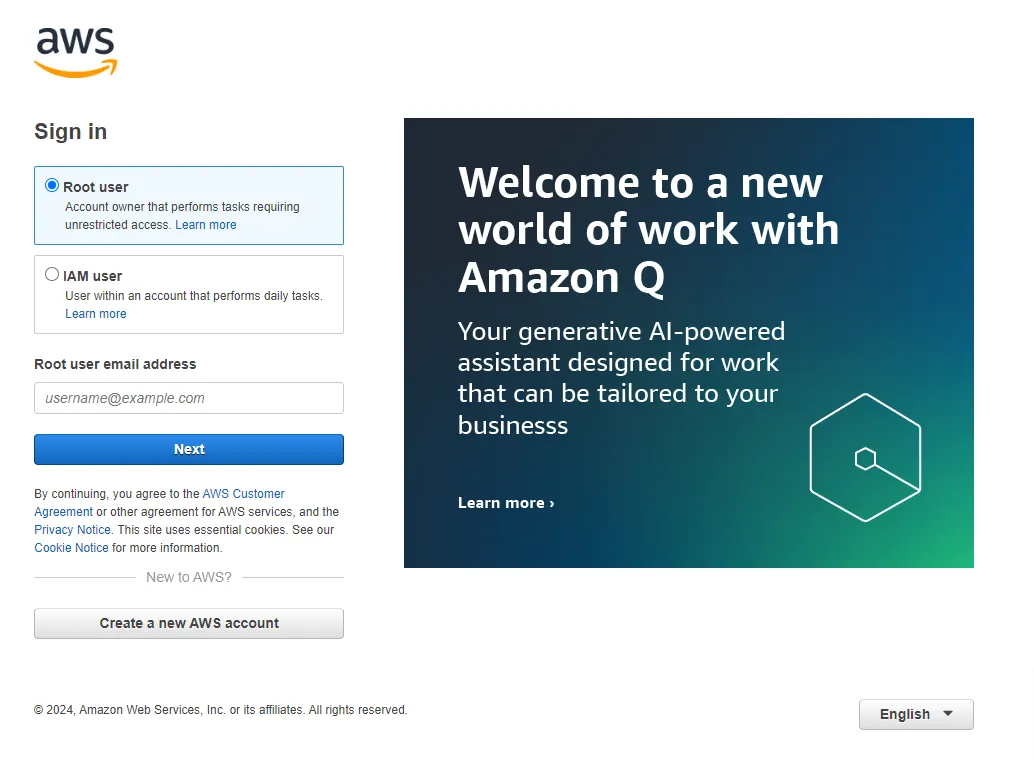
1. Log in to your AWS Account
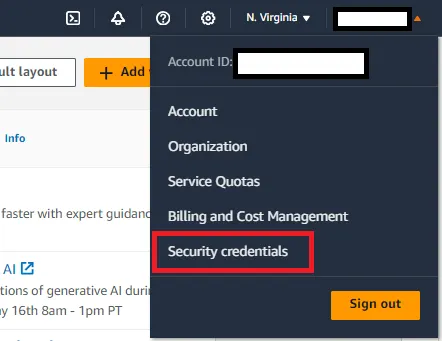
2. Click on your Profile name, and then click on My Security Credentials
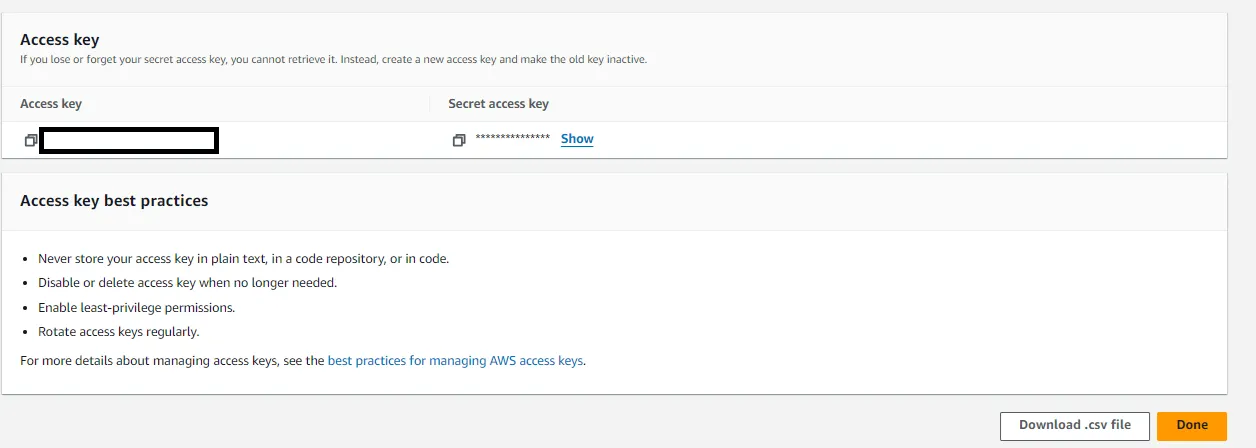
3. Find the Access keys section and create an access key

4. Download your Access Keys
2. Set up the Terraform
Setting up Grafana on Terraform in EC2 streamlines the process of deploying and managing Grafana instances, making it an efficient choice, particularly for medium-scale projects. By leveraging Terraform’s infrastructure as a code approach, you encapsulate the configuration of your Grafana deployment into a single, version-controlled file. This file acts as a blueprint for your infrastructure, detailing every aspect of the deployment, from the EC2 instance specifications to networking settings and Grafana configurations.
Let’s follow the steps below to finish our setup.
- Make a project folder
mkdir grafana-server && cd grafana-server
- create a main.tf file in the folder and paste this code.
terraform {
  required_providers {
    aws = {
      source  = "hashicorp/aws"
      version = "~> 5.0"
    }
  }
}

provider "aws" {
  region = var.region
  access_key = var.access_key_prod
  secret_key = var.secret_access_key_prod
}
- After successfully creating our main.tf, we then create our variables.tf
variable "region" {
  type    = string
  default = "eu-central-1"
}

variable "access_key" {
  type = string
}

variable "secret_access_key" {
  type = string
}

variable "ingress_ports" {
  type = list(object({
    ports =  number
    source = string
    description = string

  })
  )
}
- With this we have our variable requirements, Let’s create our terraform.tfvars file now.
region            = "<your_region>"
access_key = "<your_access_key>"
secret_access_key = "<your_secret_access_key>"

#this is the SG of instance
ingress_ports = [
{
  ports = 80
  source = "0.0.0.0/0"
   description = ""
},
{
  ports = 3000
  source = "0.0.0.0/0"
   description = ""
},
{
  ports = 443
  source = "0.0.0.0/0"
  description = ""
},
]
- Completing our variables, we can now create resources. Let’s create our network.tf
# Networking (VPC, RT, Subnets, etc...)
resource "aws_vpc" "grafana-vpc" {
  cidr_block       = "<your_selected_cidr_block>"
  instance_tenancy = "default"

  tags = {
    Name = "grafana-vpc"
    terraform_provisioned = "true"
  }
}

resource "aws_subnet" "grafana-subnet-1" {
  vpc_id = aws_vpc.grafana-vpc.id
  cidr_block       = "<your_selected_cidr_block>"
  availability_zone = "${var.region}a"
  map_public_ip_on_launch = true
  tags = {
    Name = "grafana-subnet-1"
    terraform_provisioned = "true"
  }
}

resource "aws_subnet" "grafana-subnet-2" {
  vpc_id = aws_vpc.grafana-vpc.id
  cidr_block       = "<your_selected_cidr_block>"
  availability_zone = "${var.region}b"
  map_public_ip_on_launch = true
  tags = {
    Name = "grafana-subnet-2"
    terraform_provisioned = "true"
  }
}


resource "aws_internet_gateway" "grafana-igw" {
  vpc_id = aws_vpc.grafana-vpc.id

  tags = {
    Name = "grafana-igw"
    terraform_provisioned = "true"
  }
}

# Creating Route Table for Public Subnet
resource "aws_route_table" "rt" {
    vpc_id = aws_vpc.grafana-vpc.id

    route {
        cidr_block = "0.0.0.0/0"
        gateway_id = aws_internet_gateway.grafana-igw.id
      }
    tags = {
        Name = "grafana-public-rt"
      }
}

resource "aws_route_table_association" "rt-associate-public-1" {
    subnet_id = aws_subnet.grafana-subnet-1.id
    route_table_id = aws_route_table.rt.id
}

resource "aws_route_table_association" "rt-associate-public-2" {
    subnet_id = aws_subnet.grafana-subnet-2.id
    route_table_id = aws_route_table.rt.id
}
- Lastly, we then create our ec2.tf and paste this code. Insert the EC2 AMI ID and make sure it’s the same region.
resource "aws_security_group" "grafana-sg" {
  name = "grafana-sg"
  vpc_id      = aws_vpc.grafana-vpc.id

  dynamic "ingress" {
    for_each = var.ingress_ports

    content {
      from_port   = ingress.value["ports"]
      to_port     = ingress.value["ports"]
      protocol    = "tcp"
      cidr_blocks = [ingress.value["source"]]
      description = ingress.value["description"]
    }
  }

  egress {
    from_port   = 0
    to_port     = 0
    protocol    = "-1"
    cidr_blocks = ["0.0.0.0/0"]
  }

  tags = {
    Name = "grafana-sg"
  }
}


data "aws_ami" "amazon_linux" {
  most_recent = true
  owners = [ "amazon" ]

  filter {
    name   = "name"
    values = ["al2023-ami-*"]
  }

  filter {
    name   = "architecture"
    values = ["x86_64"]
  }

}
resource "aws_instance" "grafana_smidige" {

  ami = data.aws_ami.amazon_linux.id
  instance_type = "t3a.medium"

  vpc_security_group_ids = [ aws_security_group.grafana-sg.id]
  subnet_id = aws_subnet.grafana-subnet-1.id

  associate_public_ip_address = true

  tags = {
    Name = "smidige-grafana"
  }

  user_data =  <<-EOF
                #!/bin/bash
                yum update -y
                echo -e "[grafana]\nname=grafana\nbaseurl=https://packages.grafana.com/oss/rpm\nrepo_gpgcheck=1\nenabled=1\ngpgcheck=1\ngpgkey=https://packages.grafana.com/gpg.key\nsslverify=1\nsslcacert=/etc/pki/tls/certs/ca-bundle.crt" >> /etc/yum.repos.d/grafana.repo
                yum install grafana -y
                systemctl start grafana-server
                systemctl daemon-reload
                systemctl enable grafana-server.service

                EOF

}

resource "aws_eip" "lb" {
  instance = aws_instance.grafana_smidige.id
  domain   = "vpc"

  depends_on = [ aws_internet_gateway.grafana-igw ]
}
3. Launch our Grafana Server
With this setup and proper variables we can now launch our Grafana Server or use this as a Disaster recovery within a couple or few commands, follow these commands below to launch the EC2 Grafana Server.
on grafana-server directory run these commands;
terraform init
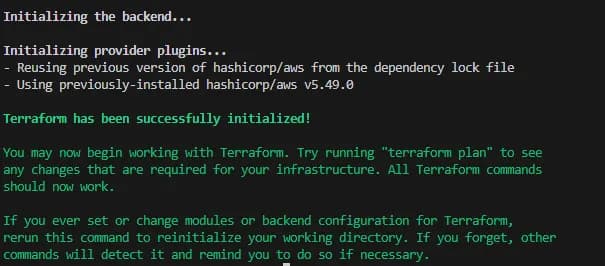
terraform plan
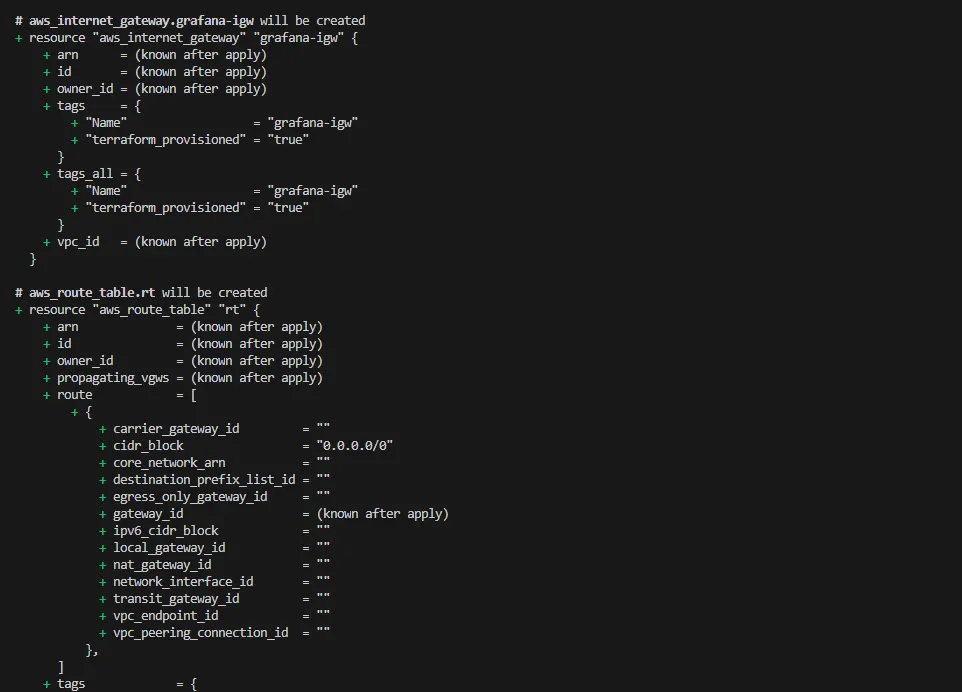
If you’ve confirmed that you’re creating the right resources for your AWS account, we can now run Terraform Apply and make sure to say yes for confirmation
terraform apply
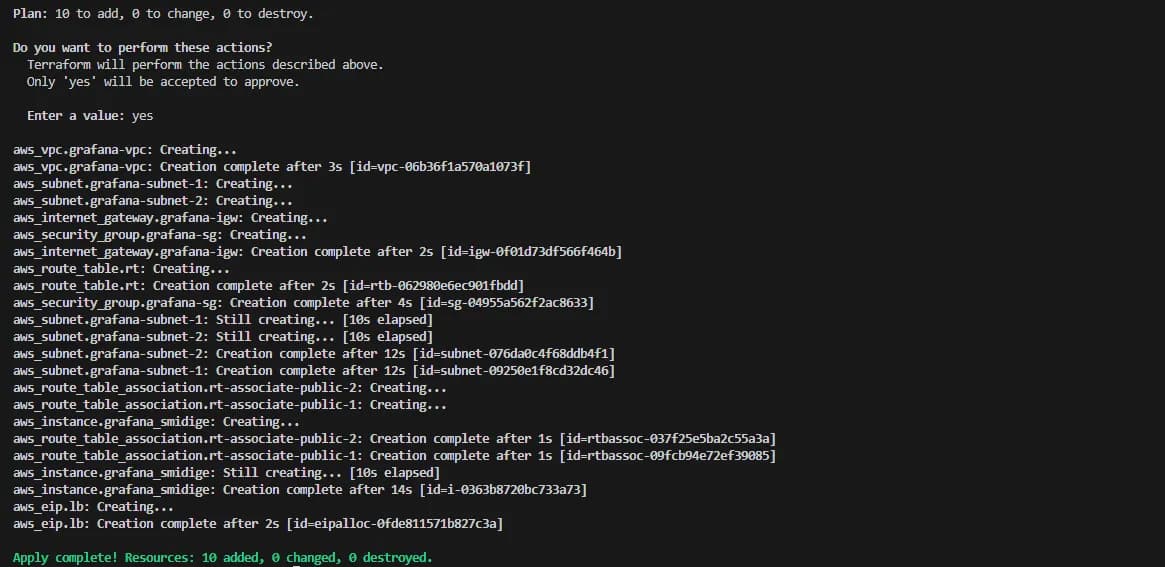
Congrats!! Now you have a Grafana instance and go to your favorite browser and open
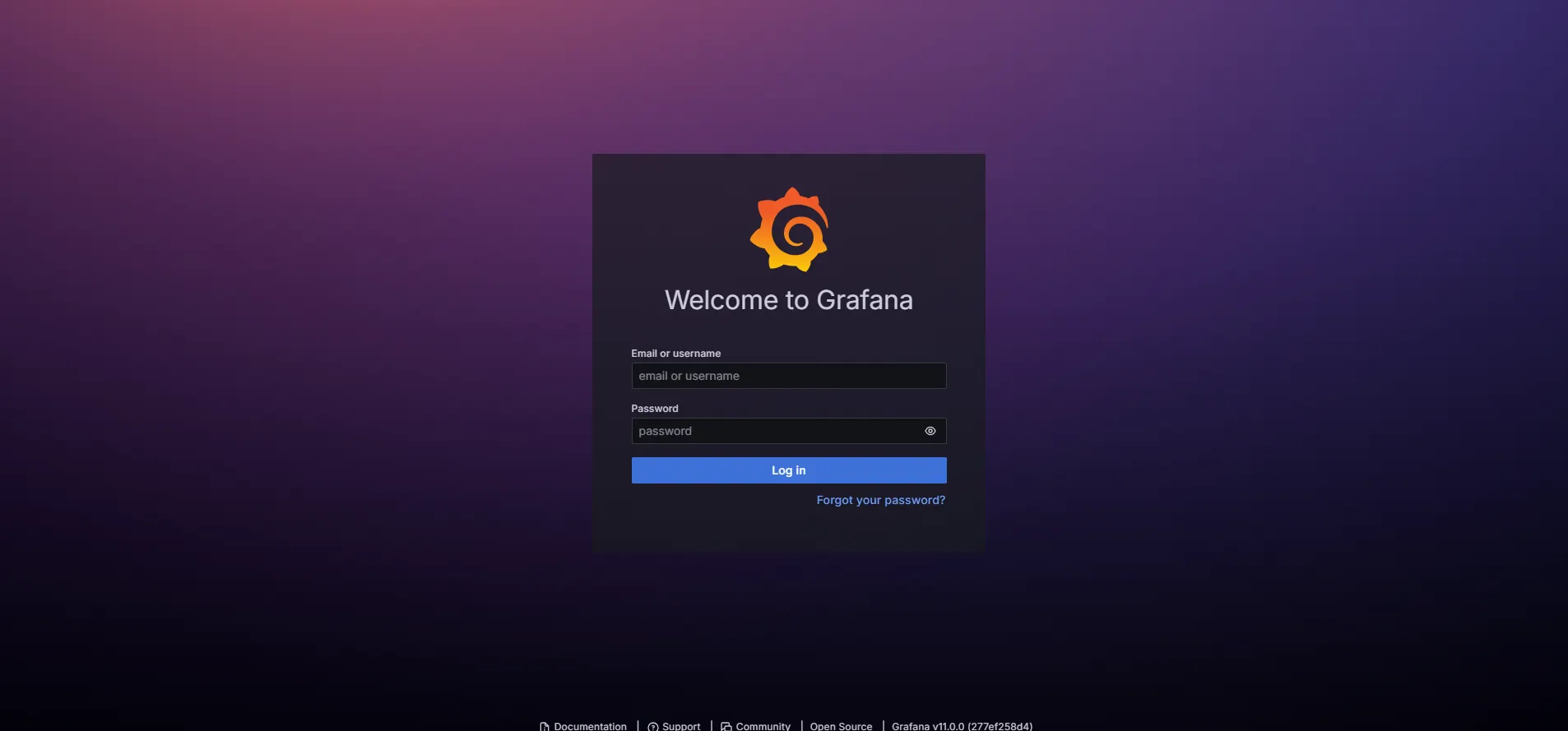
http://<EC2-instance-IP-address>:3000
If the Grafana is successfully installed, it will redirect you to the login page. To log in you can use the default auth
username: admin
password: admin
Conclusion:
In conclusion, setting up a Grafana EC2 instance is a structured process that enables powerful monitoring and visualization capabilities for your infrastructure. You can create a robust and secure monitoring solution by carefully following the steps to launch, install, and configure Grafana on an EC2 instance, and optionally integrating Prometheus for enhanced metric collection. This setup not only facilitates real-time data visualization but also ensures that your system metrics are accessible and manageable, ultimately aiding in maintaining the health and performance of your applications and infrastructure